Why use LocalSend on your PC?
Moving files between a phone and a computer is one of those chores that should be simple and almost never is. You plug in a cable and the drivers act up, or you upload to the cloud and wait, then download again on the other side, burning data twice for a file that was already sitting a metre away. LocalSend on PC removes that whole detour. Because it runs as a proper desktop application, your computer becomes just another device on the network that your phone can see and send to — and the transfer happens directly between the two, at local-network speed.
The desktop app is a first-class citizen, not an afterthought. It sends and receives, handles single files or entire folders, and shows the same clean device list you get on mobile. I keep it pinned to my taskbar because it has quietly replaced three habits at once: no more emailing myself screenshots, no more cloud round-trips for videos, and no more digging for the right USB-C cable. If you regularly pull photos off your phone or push documents to it, having LocalSend on the desktop is the half of the setup that makes the whole thing effortless.
LocalSend desktop features
The PC build mirrors the mobile app but takes advantage of the bigger screen and keyboard. Here is what you actually get once it is installed — every item works the same on Windows, macOS and Linux.
- Two-way transfers. Send from PC to phone and receive from phone to PC without changing any settings.
- Drag-and-drop sending. Drop files straight onto the window to queue them for the selected device.
- Folder support. Send an entire directory and the structure is preserved on the other side.
- Encrypted by default. Every transfer uses HTTPS/TLS encryption, so files are protected even on shared office Wi-Fi.
- Custom save location. Choose where received files land so your Downloads folder does not turn into a dumping ground.
- No account or cloud. Nothing uploads anywhere; the app needs only local-network permission to work.
Key features when using LocalSend on a computer
A few things about the desktop experience are worth calling out because they are the reason people keep it open all day rather than launching it only when they remember it exists.
1. It finds your phone automatically
As long as both devices are on the same Wi-Fi, the desktop app lists your phone by name within a second or two of the phone app opening. There is no pairing code to type or Bluetooth handshake to wait through — discovery is instant and local.
2. Large files finish fast
Because the data never leaves your network, a multi-gigabyte video that would take ten minutes to upload to the cloud copies across in a fraction of that time. On a 5 GHz network the speed is limited mostly by your storage, not your internet plan.
3. It respects your privacy
There is no telemetry and no advertising SDK bundled into the desktop build. The open-source code is the same one packaged for every platform, so you can verify that claim yourself rather than taking it on faith.
4. It handles text and links too
Need to send a long URL or a Wi-Fi password from your PC to your phone? Paste it into LocalSend and it arrives as tappable text — much nicer than retyping a forty-character string on a touchscreen.
5. It works when the internet is down
A dropped connection does not stop a transfer, because there was never a server in the loop. As long as the two devices can see each other on the local network — even a phone hotspot with no data — the send goes through. See our full guide on transferring files without internet for more on how this works.
6. One tool across every machine
If you own a Windows laptop and a Mac, the app behaves identically on both, so there is nothing new to learn when you switch computers. That consistency is a quiet luxury once you are used to it.
System requirements
LocalSend is undemanding on the desktop. It runs happily on older hardware because it does no heavy processing — it simply moves bytes. The table below covers the minimum you need and what makes for a smoother experience with very large transfers.
| Requirement | Minimum | Recommended |
|---|---|---|
| Windows | Windows 7 (64-bit) | Windows 10 or 11 |
| macOS | macOS 11 (Big Sur) | macOS 13 or newer |
| Linux | Most modern distros (AppImage/Flatpak) | Same |
| RAM | 2 GB | 4 GB or more |
| Network | Shared Wi-Fi or LAN | 5 GHz Wi-Fi for big files |
| Disk space | 150 MB for the app | Plus room for received files |
Method 1 — Install the native Windows app
This is the recommended route on a PC because it is the real desktop program, not a workaround. The whole thing takes about a minute. Read the short note first: Windows may show a SmartScreen prompt for any newly downloaded installer, which is normal.
- 1Download the Windows build
Grab the LocalSend desktop installer for Windows (from this page or the official releases).
- 2Run the installer
Open the downloaded file and follow the prompts. If SmartScreen appears, choose More info → Run anyway.
- 3Allow through the firewall
When Windows asks, tick "Private networks" so the app can discover devices on your Wi-Fi.
- 4Open LocalSend
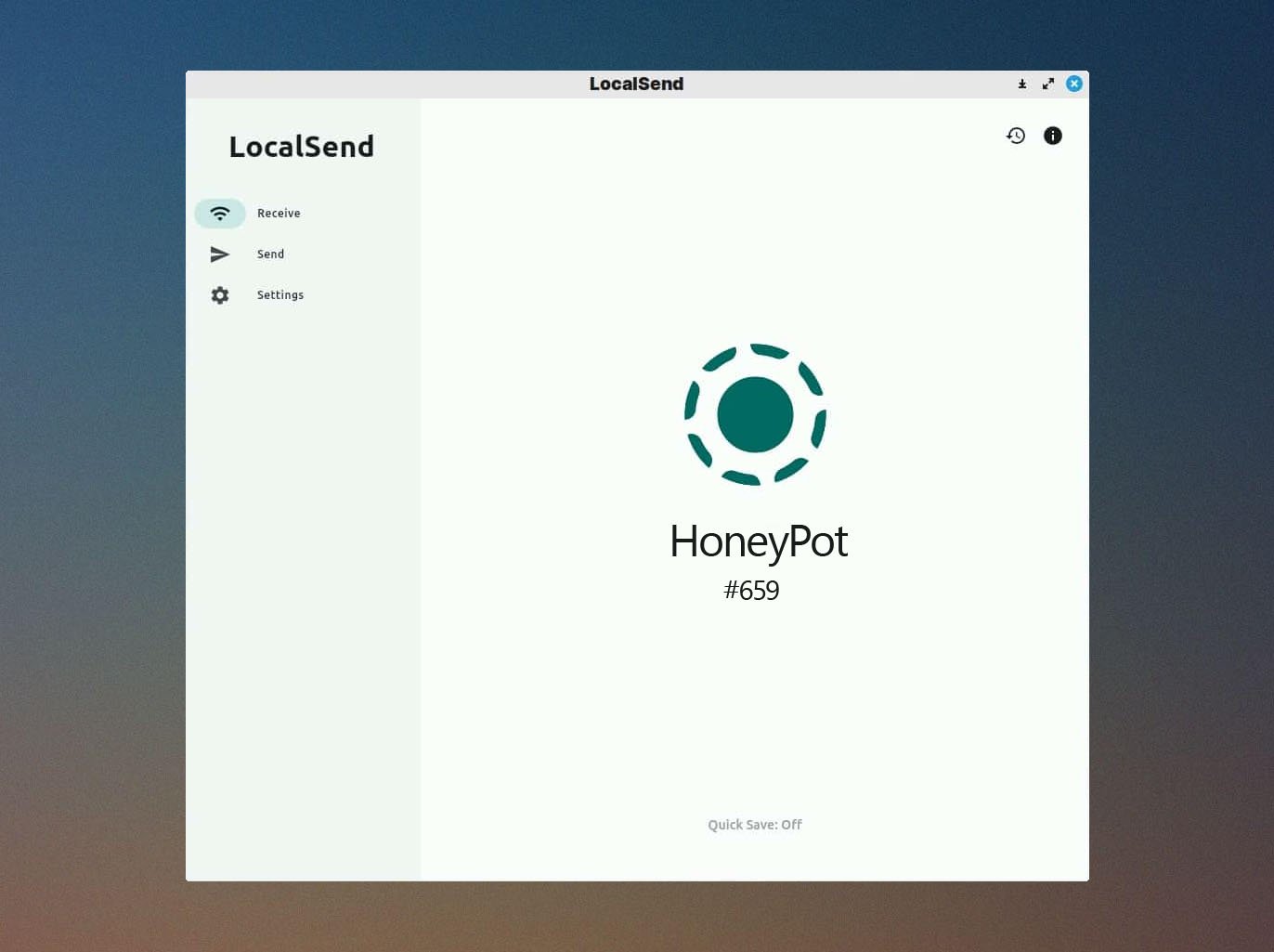
Launch it from the Start menu. Your PC now appears in the device list of any phone running the app.
- 5Open the app on your phone
Make sure the phone is on the same network and launch LocalSend there too.
- 6Send a test file
Pick a file on either device, choose the other device from the list, and accept the request to confirm it works.
Method 2 — Install on macOS
On a Mac the process is just as quick. Because the app is distributed outside the App Store as a signed build, Gatekeeper may ask you to confirm the first launch — a one-time step.
- 1Download the macOS build
Get the LocalSend .dmg for macOS 11 or newer.
- 2Drag it to Applications
Open the .dmg and drag the LocalSend icon into your Applications folder.
- 3Approve the first launch
If Gatekeeper blocks it, go to System Settings → Privacy & Security and click "Open anyway".
- 4Allow local network access
macOS will ask for permission to find devices on your network — approve it.
- 5Start transferring
Open the phone app on the same Wi-Fi, select your Mac, and send.
Method 3 — Run the Android app on PC (emulator)
You almost never need this, since the native desktop app is better in every way. But if you specifically want the Android build running on your computer — for testing, or to keep a phone-style interface — you can load the APK inside an Android emulator. It is heavier and slower than the native app, so treat it as a last resort.
- 1Install an Android emulator
Download and set up BlueStacks, MEmu, Nox or LDPlayer on your PC.
- 2Sign in and finish setup
Complete the emulator's first-run setup so it can install apps.
- 3Load the LocalSend APK
Drag the downloaded APK onto the emulator window, or use its built-in "install APK" button.
- 4Grant network permission
Open the app inside the emulator and allow local-network and storage access.
- 5Connect to your phone
Ensure the emulator shares your PC's network, then discover and send as usual.
Best Android emulators for LocalSend
If you do go the emulator route, these are the four most reliable choices. Each runs Android on your PC; the differences come down to performance and how heavy they feel on older machines.
How to use LocalSend on PC day-to-day
Once installed, the workflow becomes muscle memory. Here is the loop I run dozens of times a week when pulling photos off my phone or pushing a PDF to it.
- 1Keep both apps on the same network
Your PC and phone must share the same Wi-Fi or hotspot for discovery to work.
- 2Open LocalSend on both
Each device advertises itself the moment the app is open.
- 3Choose files to send
Drag files onto the desktop window, or tap the send button on the phone.
- 4Pick the destination device
Select the target from the list of nearby devices by its name.
- 5Accept on the other end
The receiving device shows a request; approve it to start the transfer.
- 6Find your files
Received files land in your chosen save folder, ready to open.
Native app or emulator — which should you use?
If you take one thing from this guide, let it be this: for almost everyone, the native desktop app is the correct answer, and the emulator method is a niche fallback. The native build is lighter, faster, and integrates with your operating system the way any normal program does — it opens instantly, uses barely any memory, and drag-and-drop just works. An emulator, by contrast, boots an entire virtual Android device in the background, which can eat a couple of gigabytes of RAM and add noticeable lag before you have moved a single file.
So when would you reach for the emulator at all? Really only two situations. The first is if you are a developer or tester who specifically wants to see how the Android version behaves on a big screen. The second is if you are attached to the phone-style layout and prefer it over the desktop interface. Outside those cases, installing the native Windows or macOS app will always give you a smoother, more reliable experience — and it is the version I would put on a family member's computer without a second thought.
Pros & cons of LocalSend on PC
The desktop app is excellent, but it is worth knowing its limits before you rely on it. Here is the honest balance.
What works
- A real native app on Windows, macOS and Linux — no emulator overhead.
- Two-way transfers with drag-and-drop and folder support.
- Fast, private and free, with no account or cloud involved.
- Identical behaviour across every operating system.
What to watch
- Both devices must be on the same network — it will not reach a computer across the internet.
- Windows SmartScreen or macOS Gatekeeper may prompt on first launch, which can worry new users.
- Some corporate or public networks block device discovery, so a personal hotspot may be needed.
Frequently asked questions
Does LocalSend have a real PC app?
Yes. LocalSend ships native desktop apps for Windows, macOS and Linux, so you do not need an emulator. The desktop app connects to the phone app over your local network and works in both directions.
Can LocalSend send files from PC to phone?
Absolutely, and from phone to PC as well. As long as both devices share the same Wi-Fi or hotspot, either one can send to the other.
Is LocalSend for PC free?
It is completely free and open source under the Apache-2.0 licence, with no ads, no account and no paid tier on any platform — Windows and macOS included.
Conclusion
The desktop half of LocalSend is what turns it from a handy phone app into a genuinely complete file-transfer setup. On Windows, macOS or Linux it installs in a minute, finds your phone instantly, and moves even huge files without touching the cloud. For nearly everyone the native app is the right choice — reserve the emulator method for the rare case where you specifically want the Android build on screen.
Set it up on both your computer and your phone and the everyday friction of shuffling files simply disappears. If you are on an iPhone or iPad, see our LocalSend for iOS guide, and head back to the main download page for the latest tested build and the full feature rundown.
Reviewed and updated by Nadia Karim · July 2026